

Let's do it together!
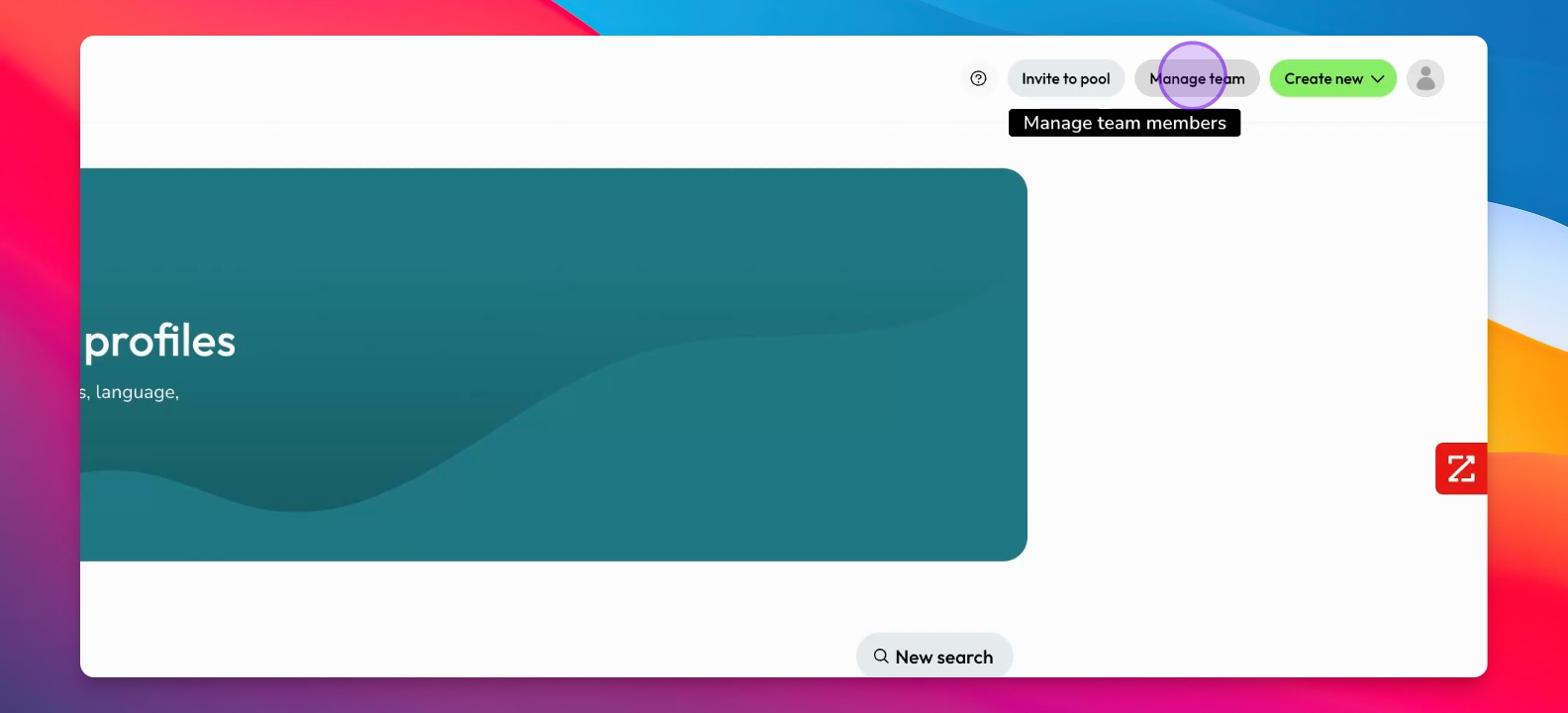
Step 1: How To Access Team Management
Click on Manage Team in the top-right corner of the application.
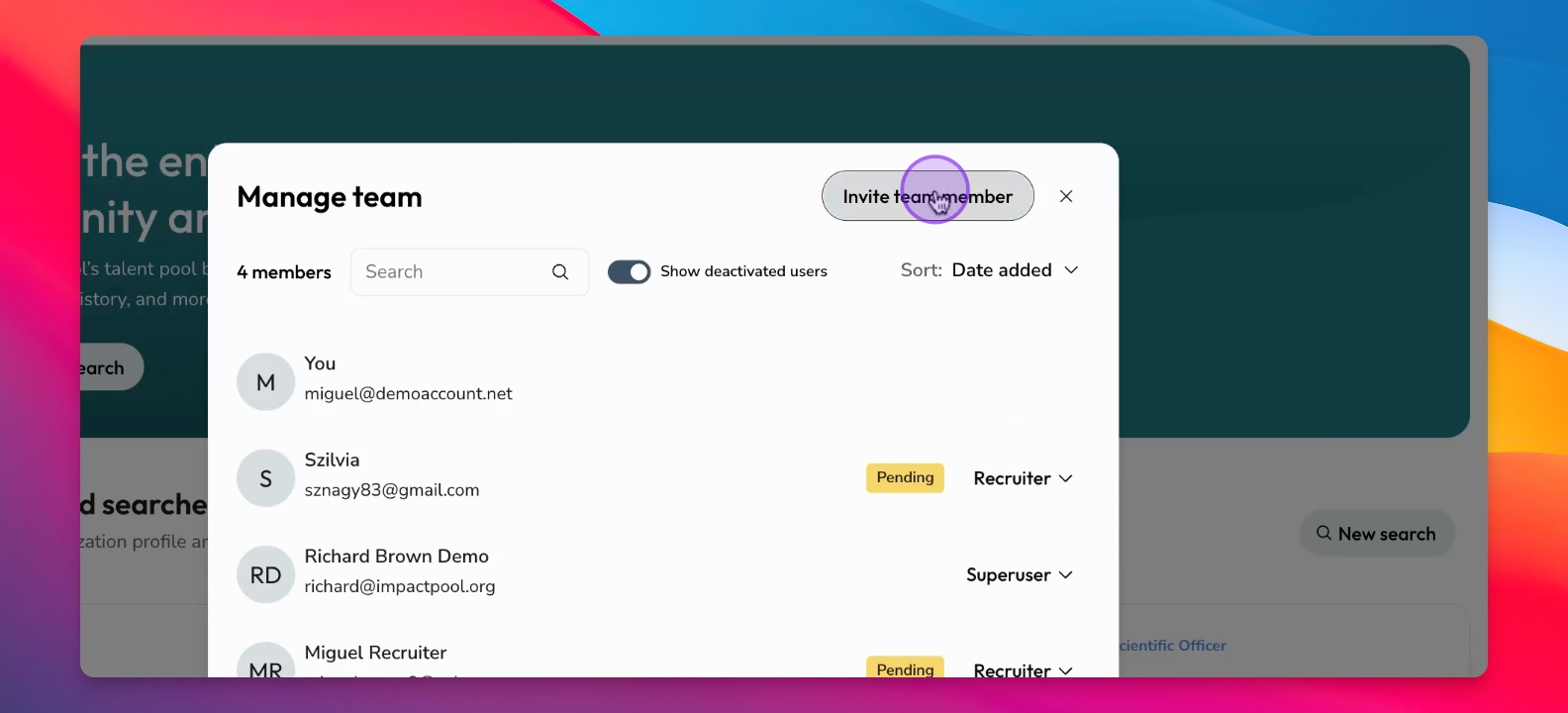
Step 2: Invite Team Members
In the pop-up, click Invite Team Member, enter their name and email, and choose their role as Recruiter or Super User.
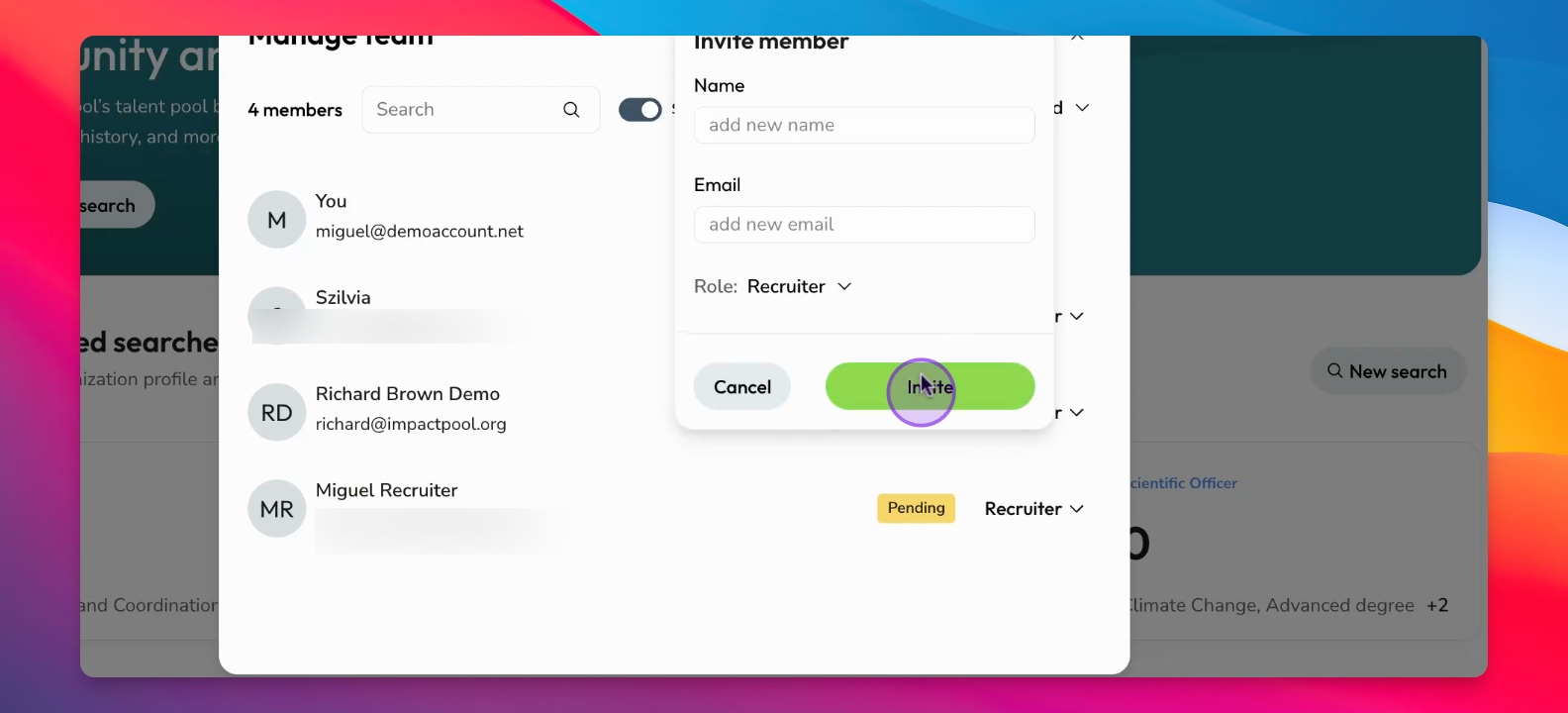
Step 3: Send Invite
After entering the details, send out the invite to the new team member.
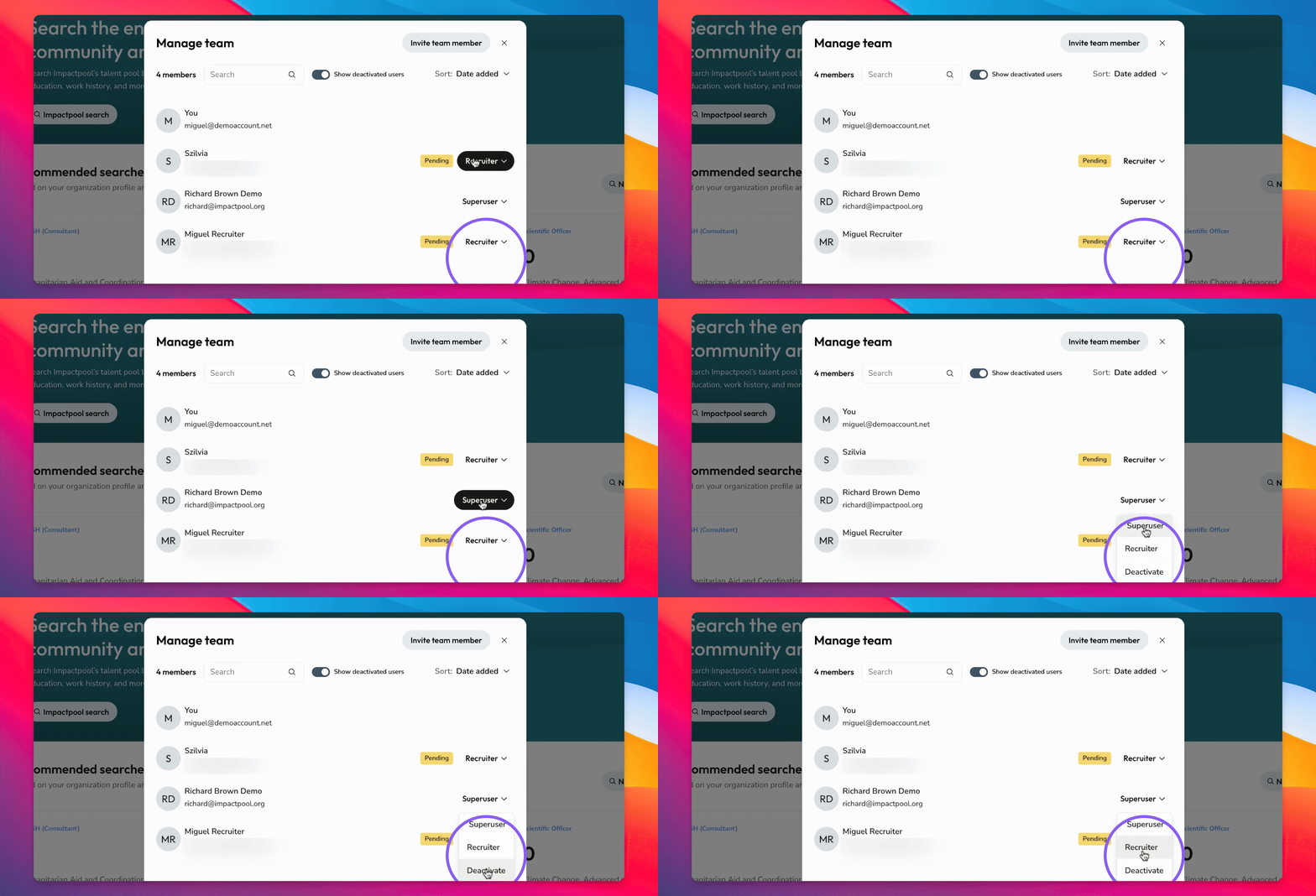
Step 4: Edit Team Member Role
To edit a team member's role, select their name and change their role from Super User to Recruiter.
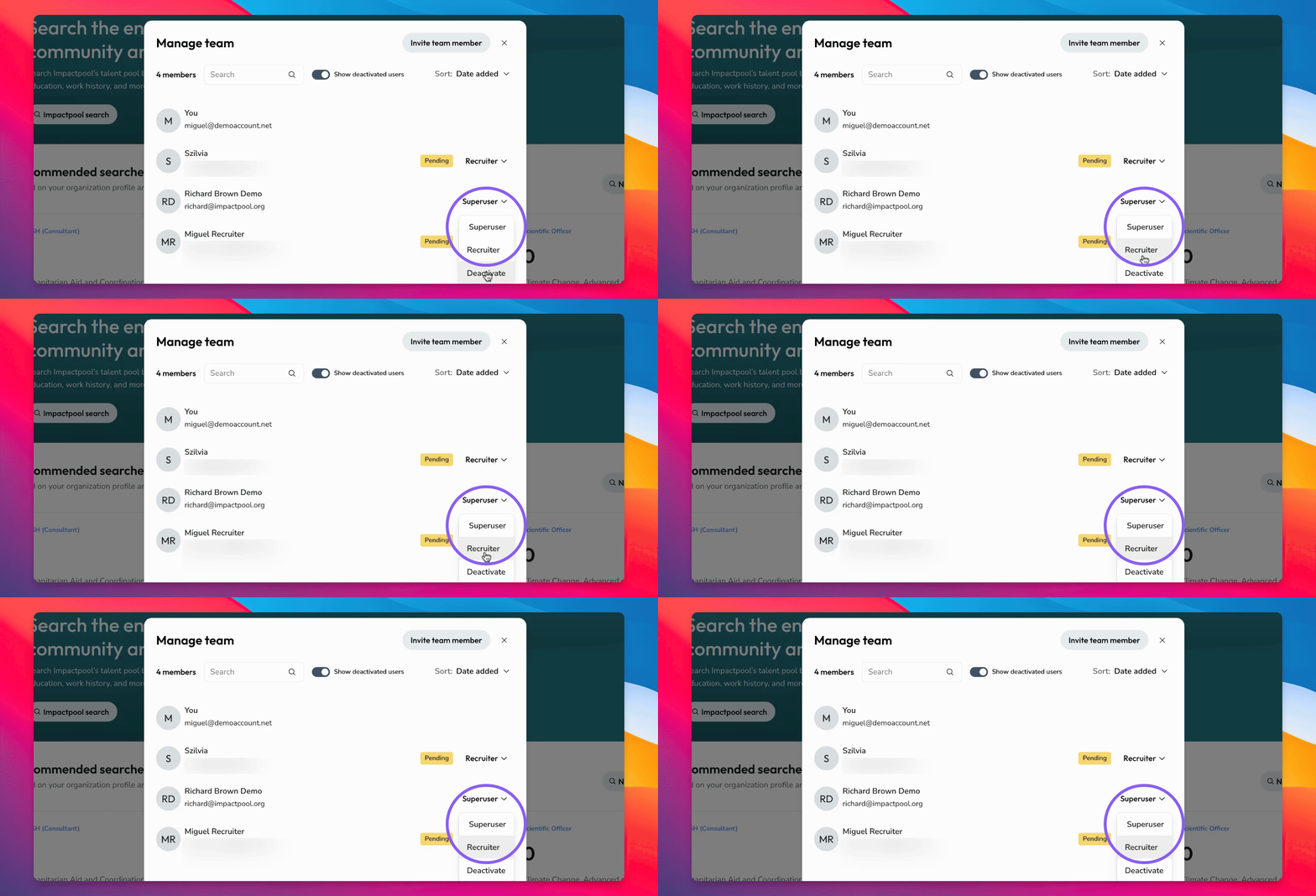
Step 5: Deactivate Team Members
To deactivate a member, select their name and click Deactivate.
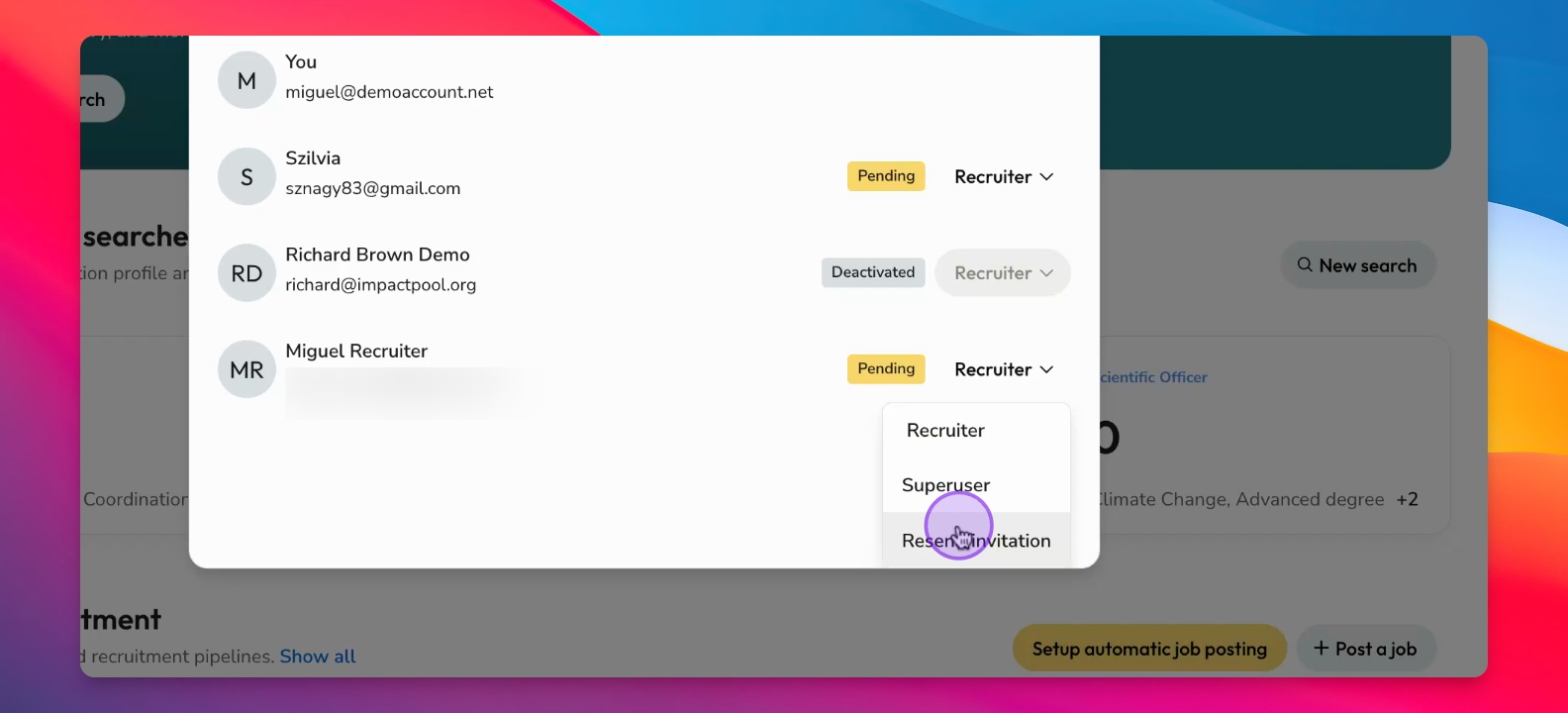
Step 6: Resend Invitations
You can resend invitations to team members if needed. This may happen when a colleague has not activated their account. Resending the invitation will trigger a new activation email
Troubleshooting
Cannot deactivate user
Ensure the user has activated their account before attempting to deactivate.
FAQ
What roles can I assign?
You can assign roles as either Recruiter or Super User.
Can I edit roles later?
Yes, roles can be edited after initial assignment.
What if the invitee doesn't receive the invite?
You can resend the invitation at any time.