
Read more here on how to add a colleague to the Impactpool Recruiter Dashboard.
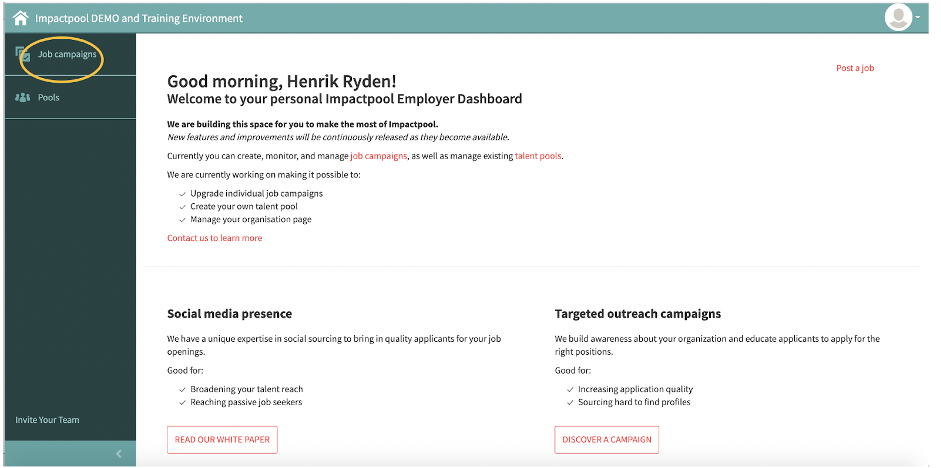
Step 1: To grant a colleague screening access to a specific job, start to press the Job campaigns button in the left sidebar (marked in orange below).
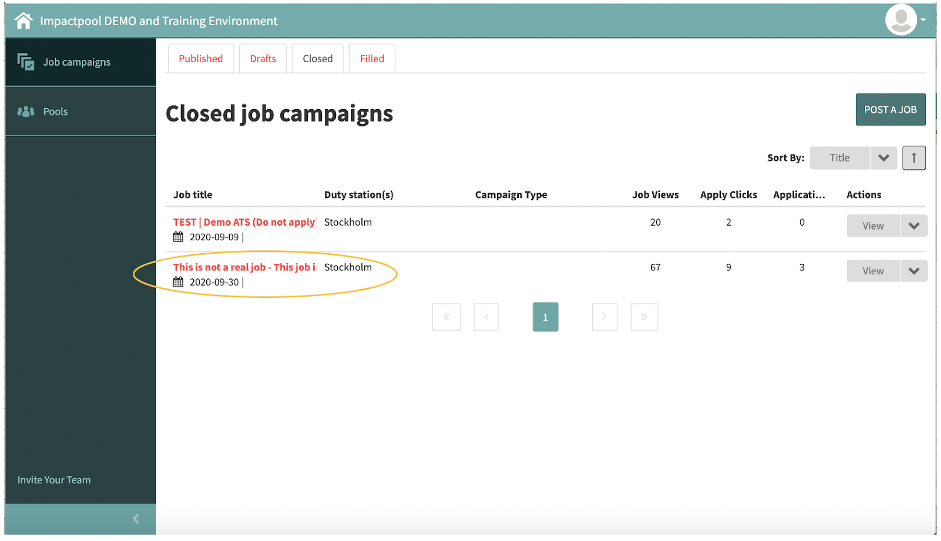
Step 2: Select the job that you would like your colleague or Hiring manager to screen. Press the Title of the job (marked in orange below).
Step 3: Impactpool Recruit™ uses role-based security. It means that different roles have access to see different screens and to take different actions.
In default, only the roles of Superuser and the Recruiter who created the job can take action on the screen and grant access.
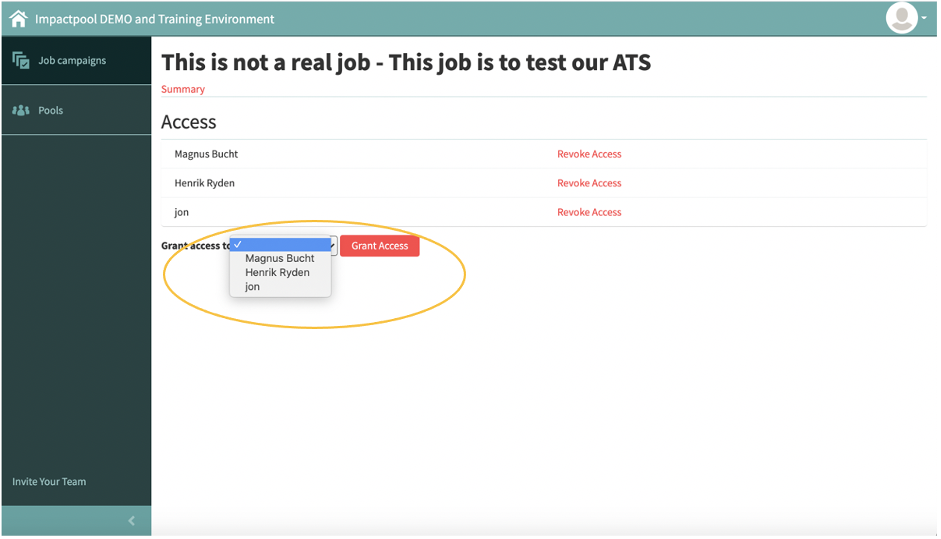
If access is denied contact your Superuser. From this screen, you can see who has view access to the job.
Add a colleague or a Hiring Manager by selecting the colleague's name from the drop-down (marked in orange below).
Read more here what to if the colleague nor the Hiring Manager is on the list.