
To learn how you send a batch message in Impactpool Recruit™ - Read: How to send a batch message or regret letter to all or selected applicants in Impactpool Recruit™?
As a recruiter, you may want to know what messages have been sent to the applicants. In the event of an audit, the auditor may also be interested in this infomation.
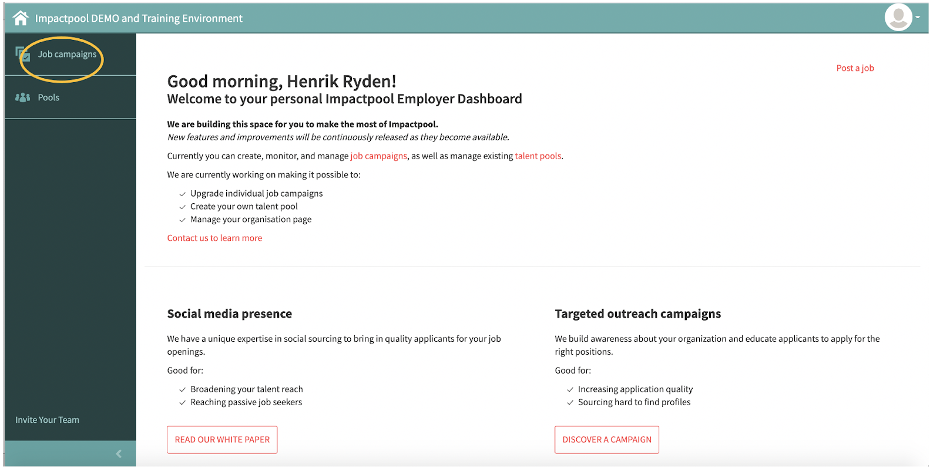
Step 1: To view messages sent, start to press the Job campaigns button in the left sidebar (marked in orange below).
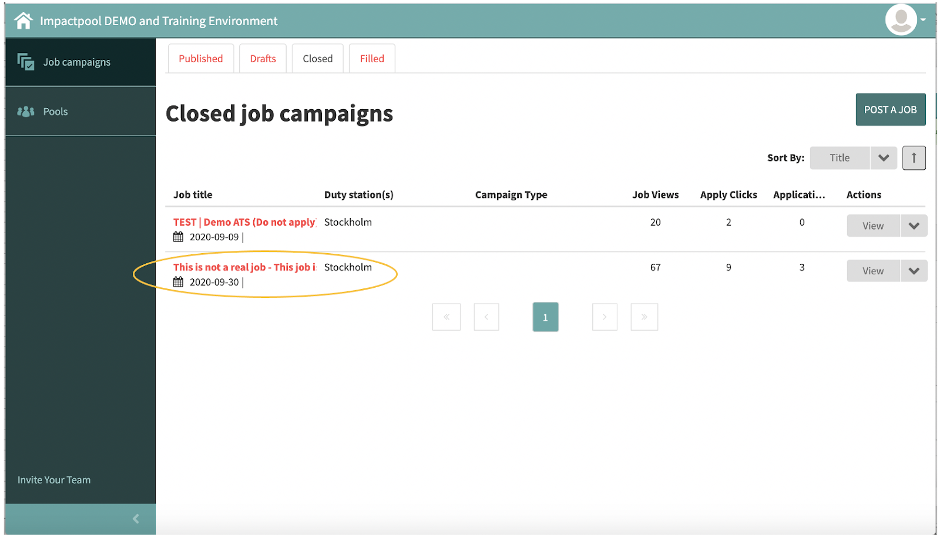
Step 2: Select the job. Press the Title of the job (marked in orange below).
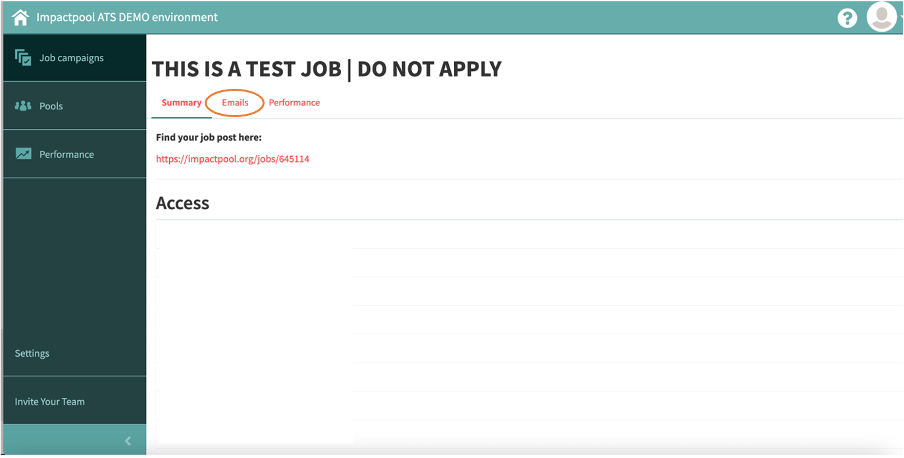
Step 3: Press the [Emails] link (marked in orange below) and a list of e-mails appears. By clicking on the e-mail you can review the delivery at an individual level.
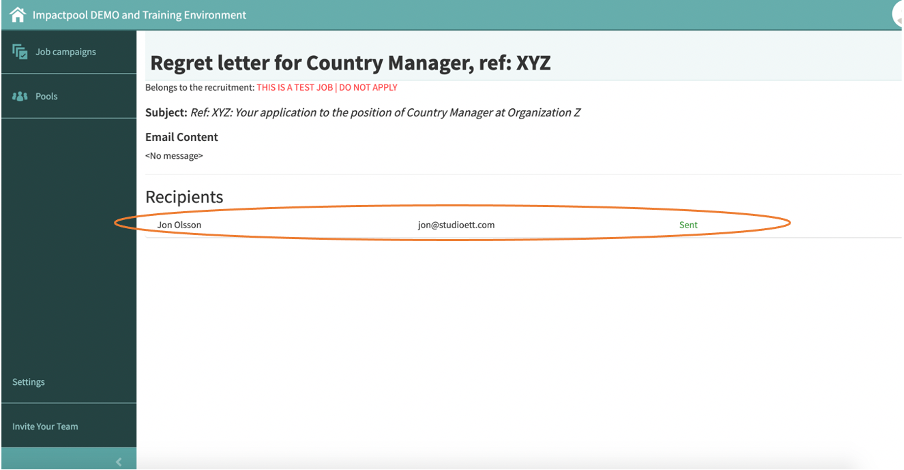
This message has been delivered successfully and the candidate [Jon Olsson] has the status of [Sent].
The e-mails are being sent out in batches, so it may take some time between you send and the message is confirmed delivered.