
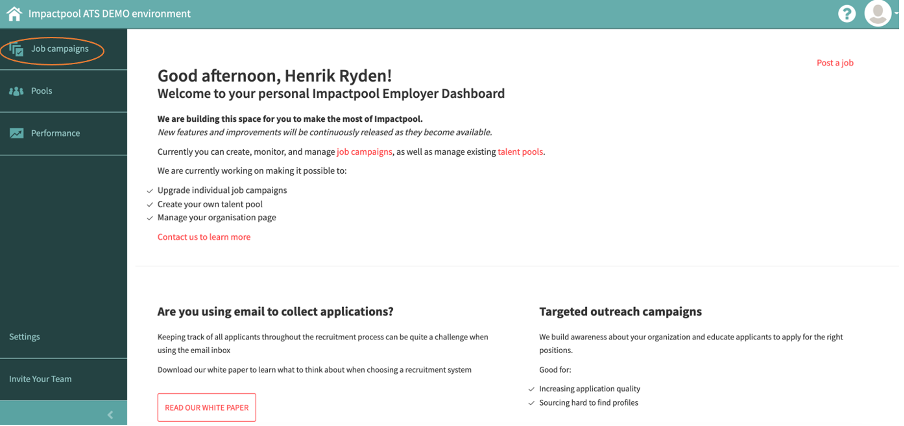
Step 1: Navigate to the list of jobs by pressing the Job campaigns button in the left sidebar (marked in orange below).
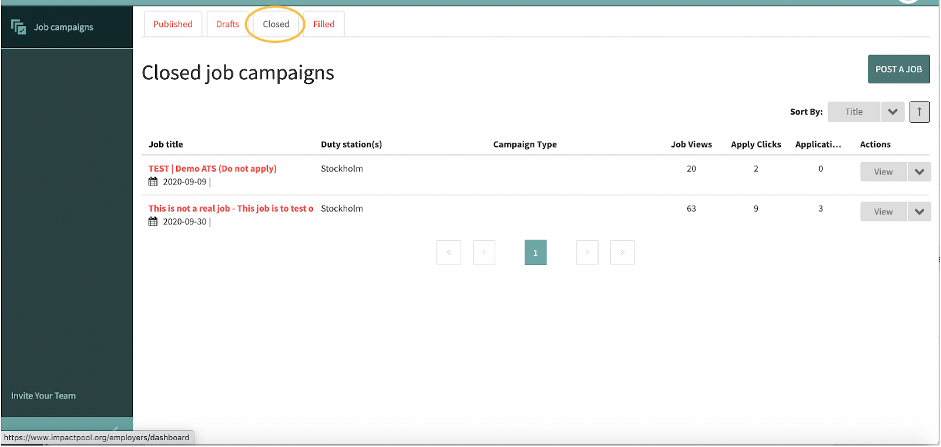
Step 2: Find the job to screen. If the job is open for applicants, you will find the job under the [Published] tab. If the job is no longer open for applicants, you will find the job under the [Closed] tab (marked in orange below).
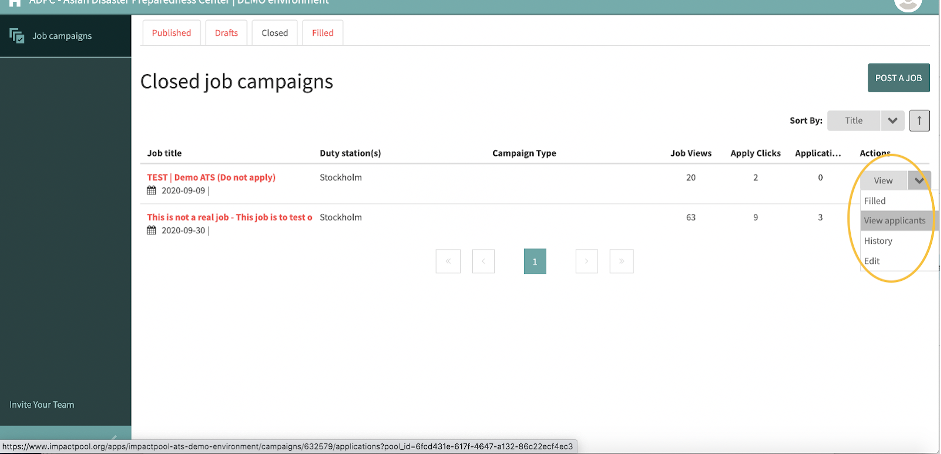
Step 3: When you have found the job to screen. Point your mouse at the View bar to the right of the job and select View applicants in the drop-down (marked in orange below).
Access denied: If your access is denied, please liaise with your Superuser. Read how to grant screening access to a job.
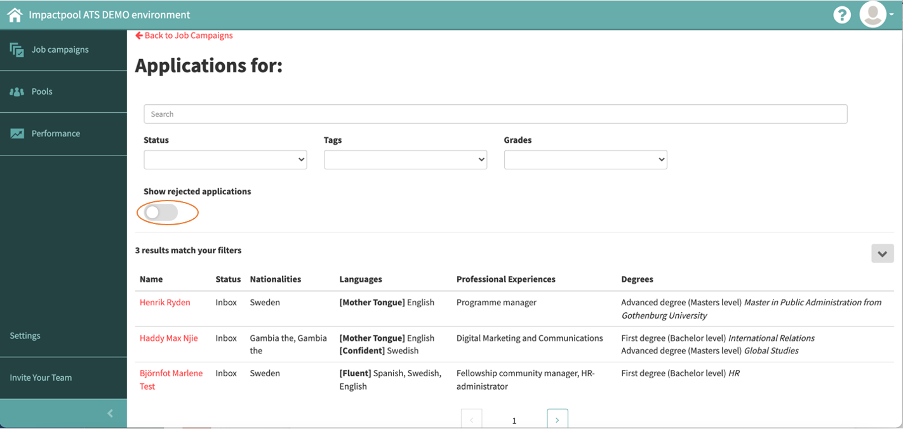
Step 4: If you have been assigned screening access, you will enter into the screening console where you can see all candidates. The list shows a sneak preview of the candidate to ease your work.
A new eligible candidate appears in the screening console with the status [Inbox]. A candidate that does not pass any of the job-specific questions appears in the 'rejected' list.
You can easily at any time flip the toggle (marked in orange below), to see what candidates are no longer under consideration.
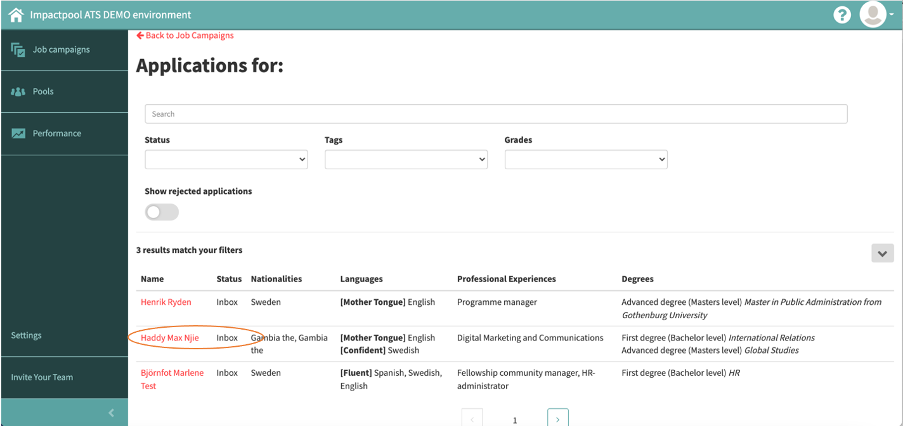
Step 5: To view the application of a candidate, click the name of the candidate you would like to view (marked in orange below).
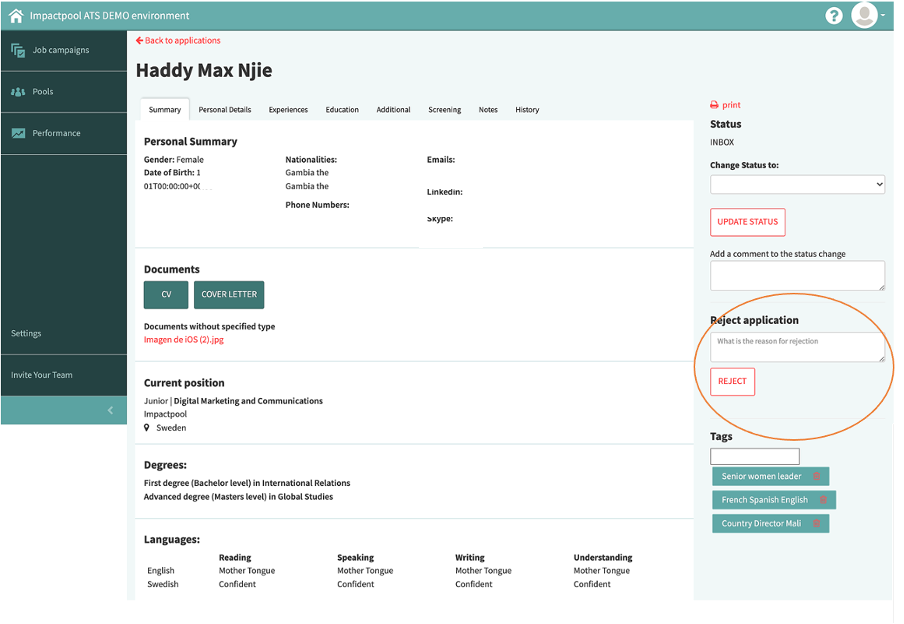
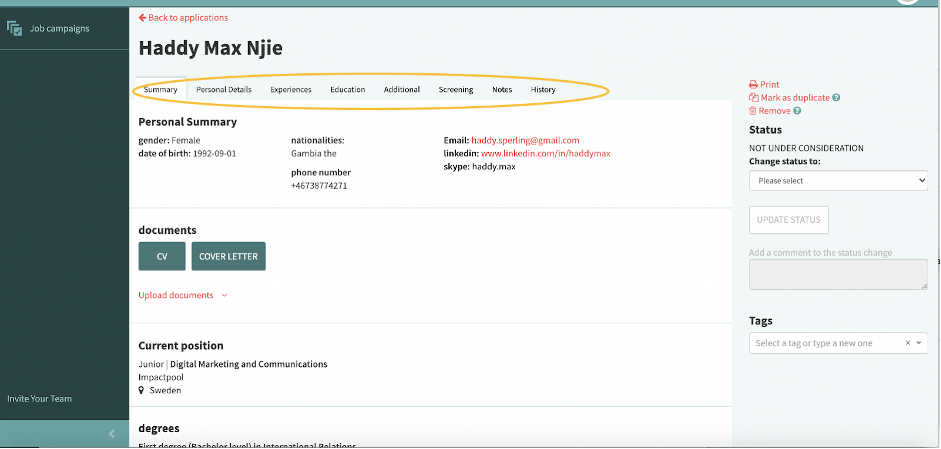
Step 6: In the candidate profile screen, right under the name of the candidate, there is a bar (marked in orange below). Click on each of the tabs to review the whole application.
By clicking the green marked button labeled CV, you can also download the candidate's CV and Cover Letter.
Step 7a - For candidates still under consideration: On the right-hand side of the screen, in the light green shadowed area, you will find the Status navigation (marked in orange below).
If you still consider a candidate after that you have reviewed a candidate's application.
Change the status in the dropdown
Add the desired status
Add a comment and press the red-framed button (section is marked in orange below).
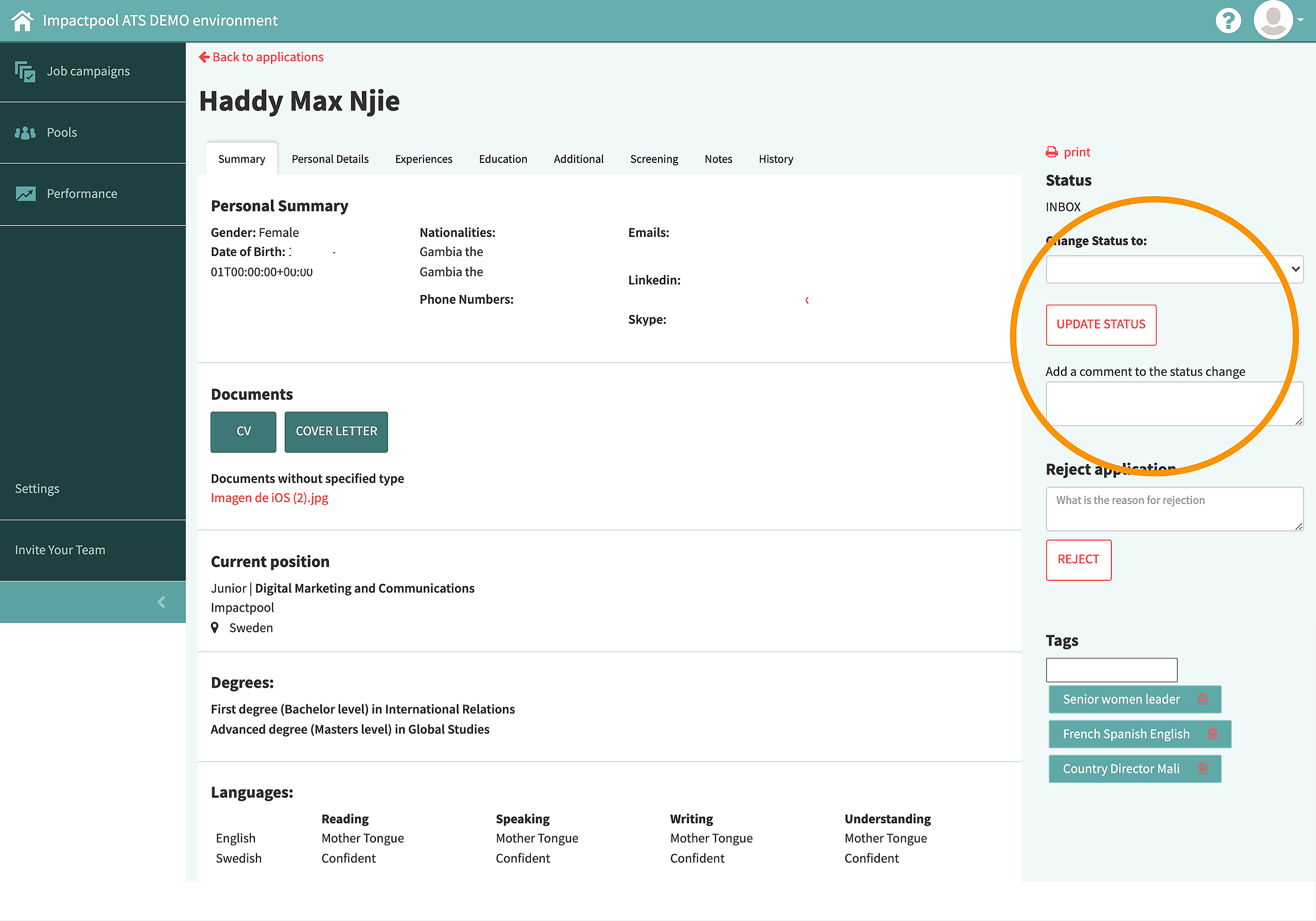
Step 7b - For candidates no longer under consideration: On the right-hand side of the screen, in the light green shadowed area, you will find the Reject application navigation (marked in orange below).
If you still consider a candidate after that you have reviewed a candidate's application.
Add a comment and press the red-framed [Reject] button (section is marked in orange below).
At any time you can easily flip the toggle (see step 4 above) to see what candidates are no longer under consideration. A rejected candidate appears in the 'reject' list with the latest screening status.