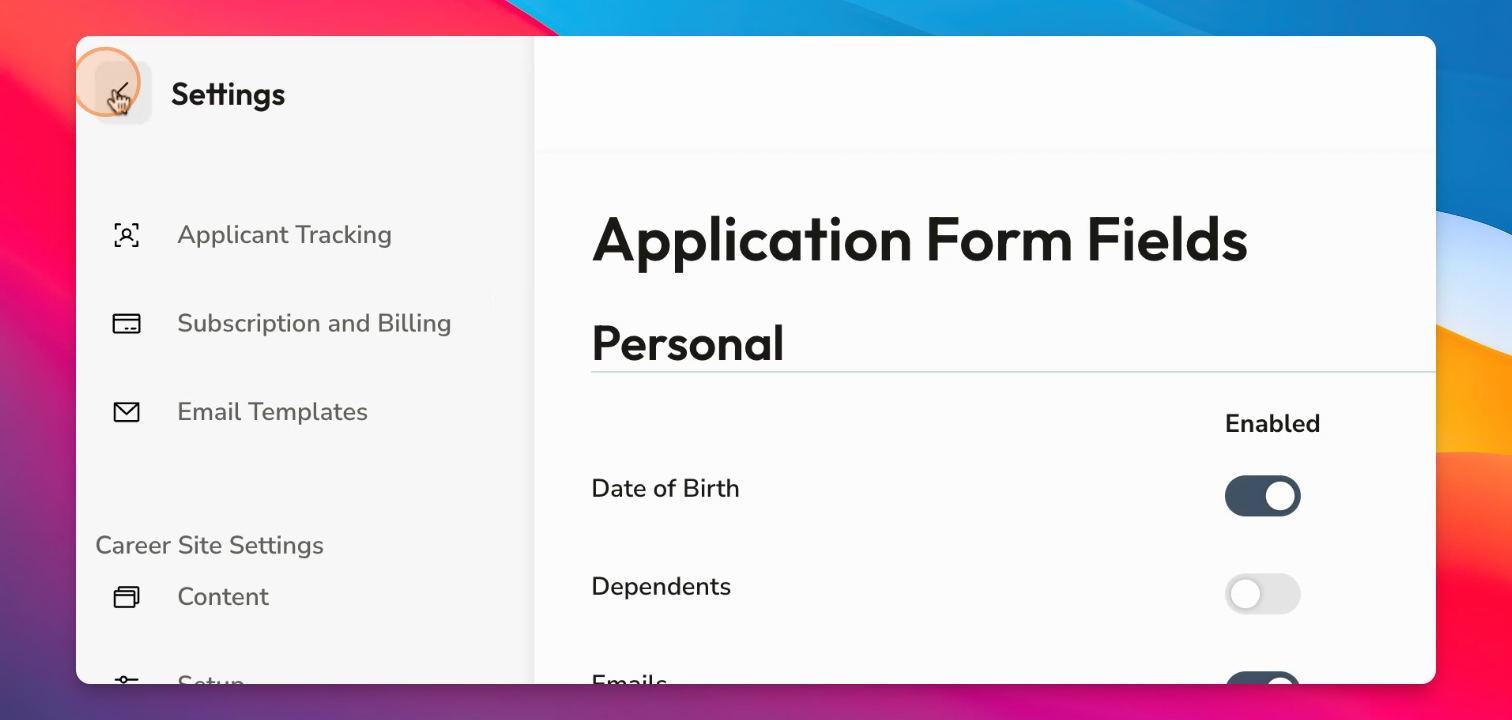

Welcome to this short video depicting how to create or edit the Application form field inside Settings, which is found on the bottom left of your menu tab. Let's look at the steps:
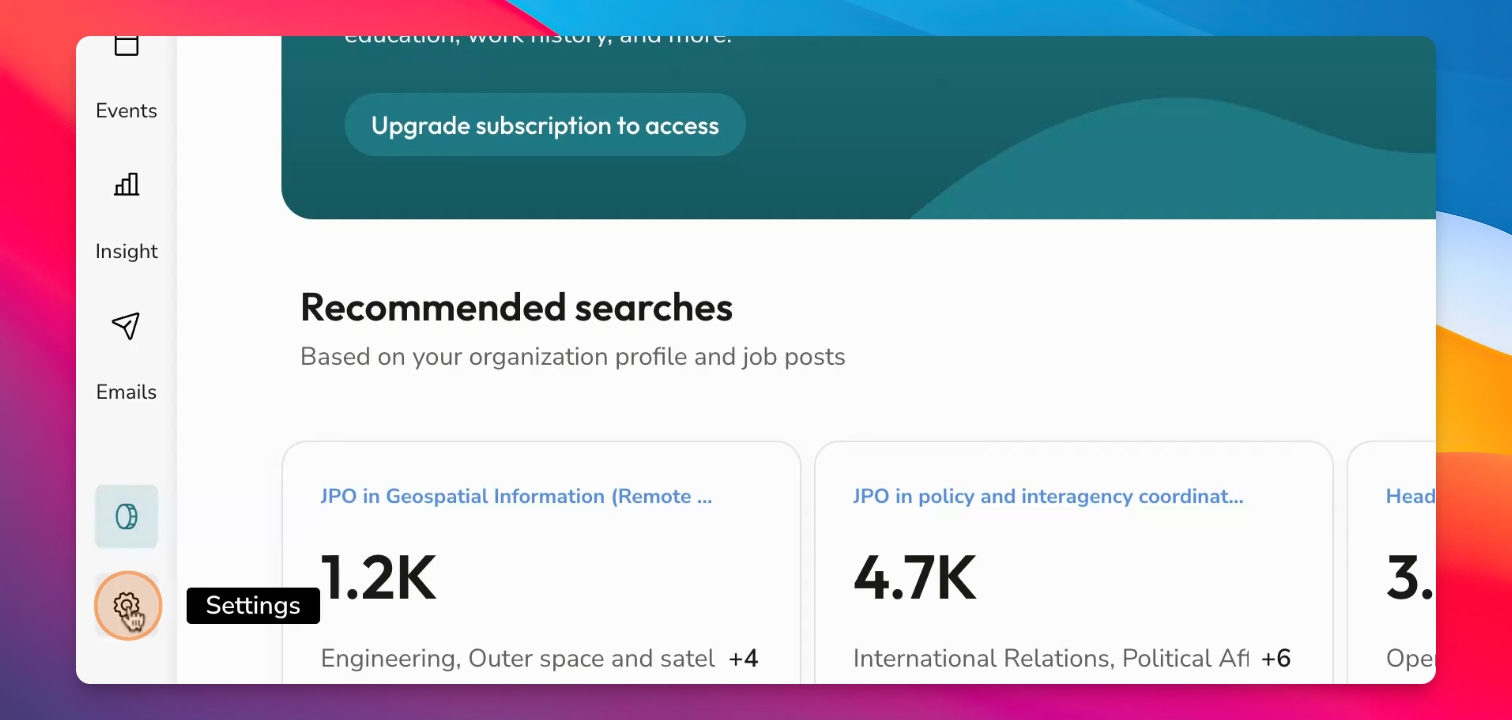
Step 1: Access Settings
Click on Settings to go to the Settings base, where you'll find all your various settings.
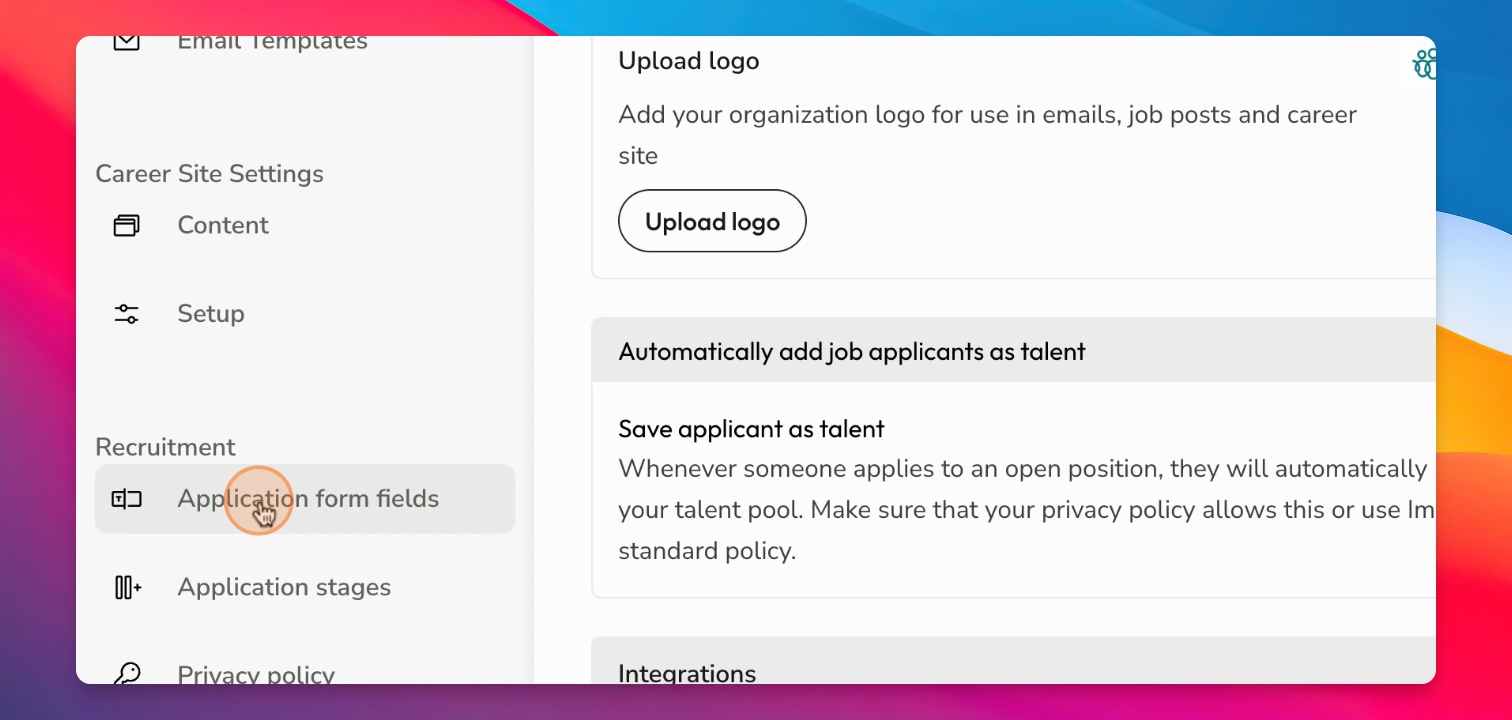
Step 2: Open Application Form Fields
Scroll down to Recruitment and click on Application Form Fields.
Step 3: Enable/Disable Fields
In here you'll be able to enable and disable each line of information that you would like to request.
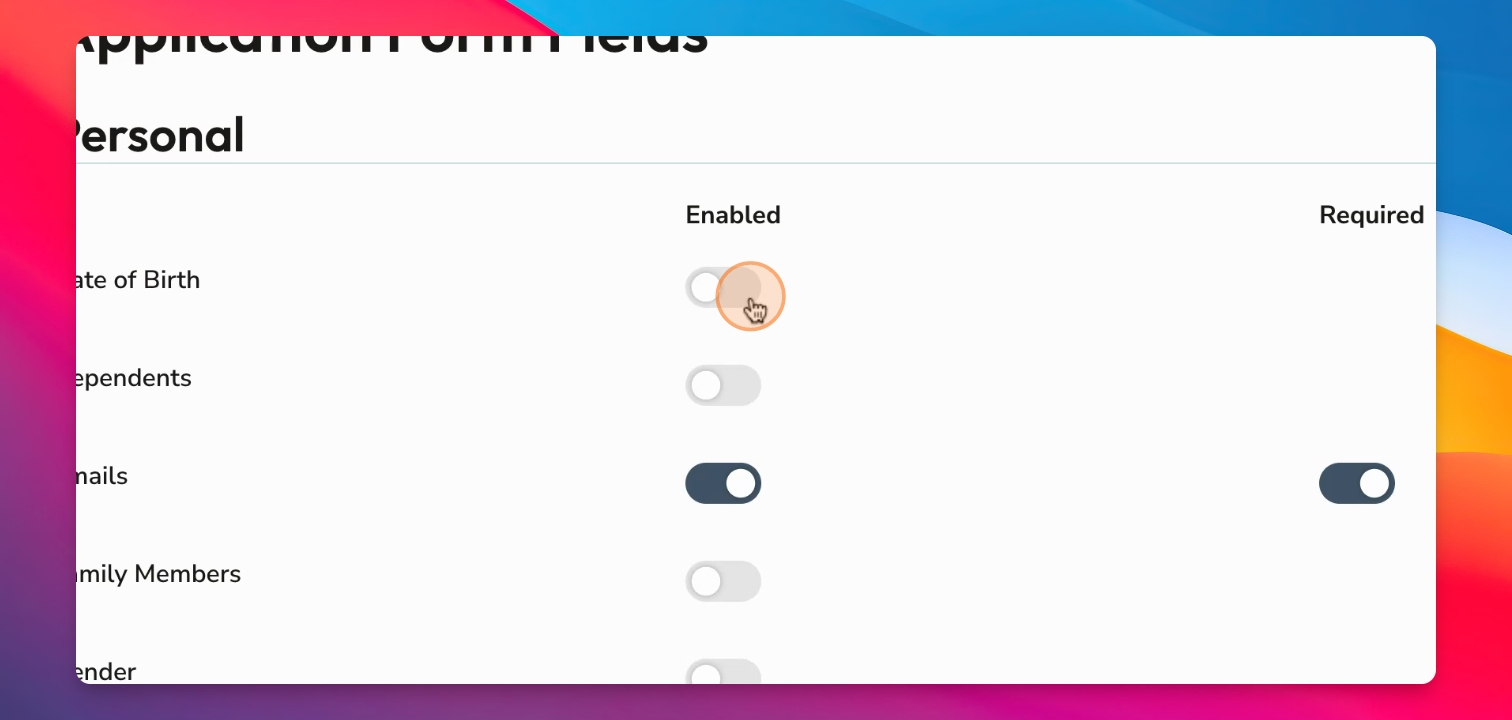
Step 4: Set Data Requirements
When you enable it, you can make the data required or just enabled and you can do this on every single option.
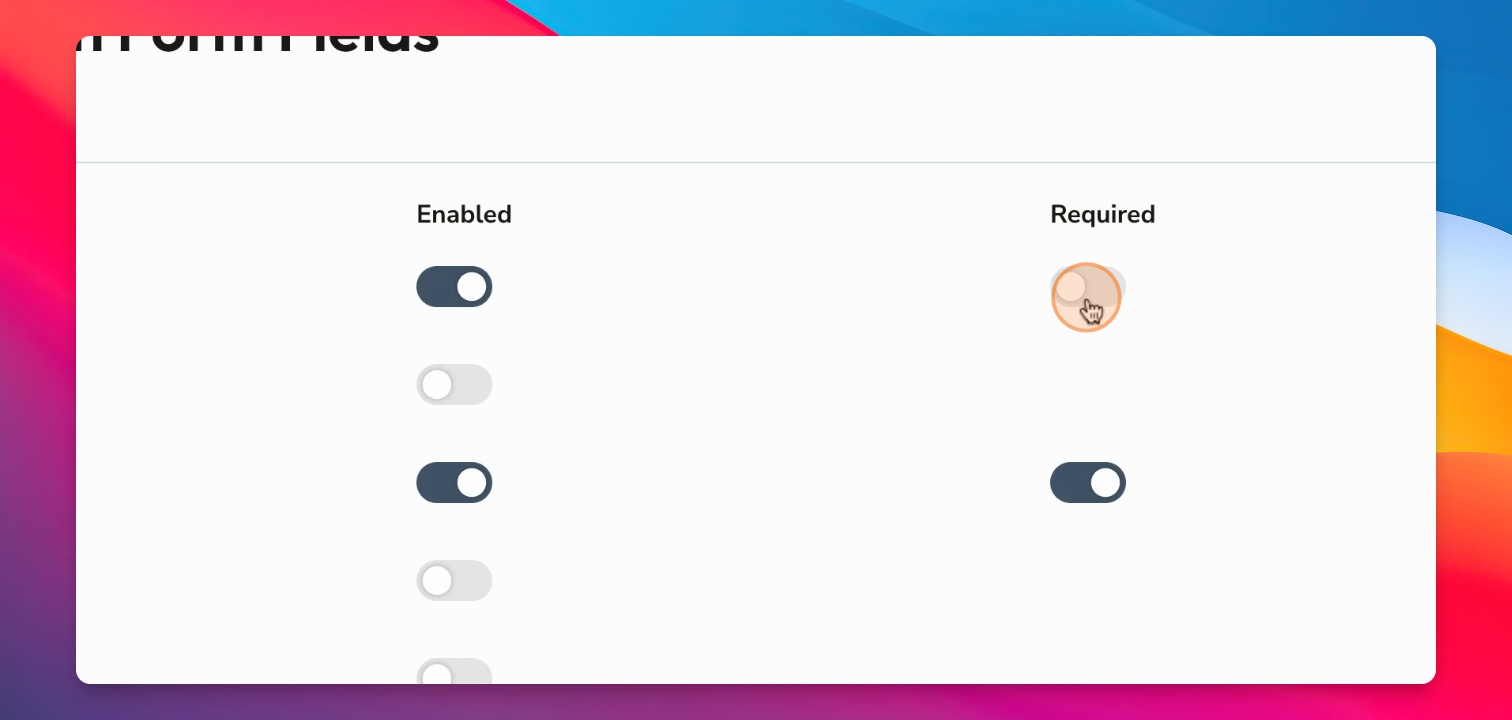
Step 5: Choose Information Types
You can choose personal information, academic background, languages, work experiences, and various questions around personal summaries.
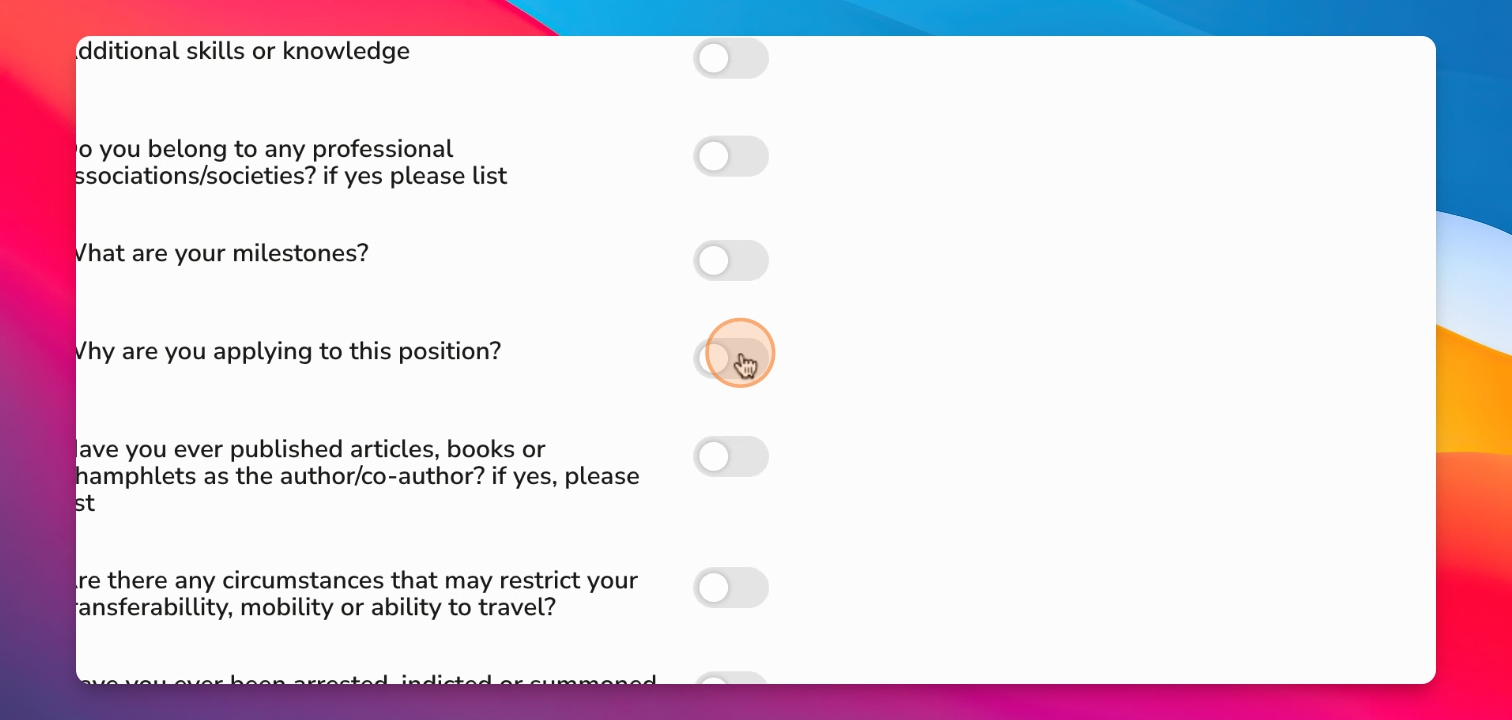
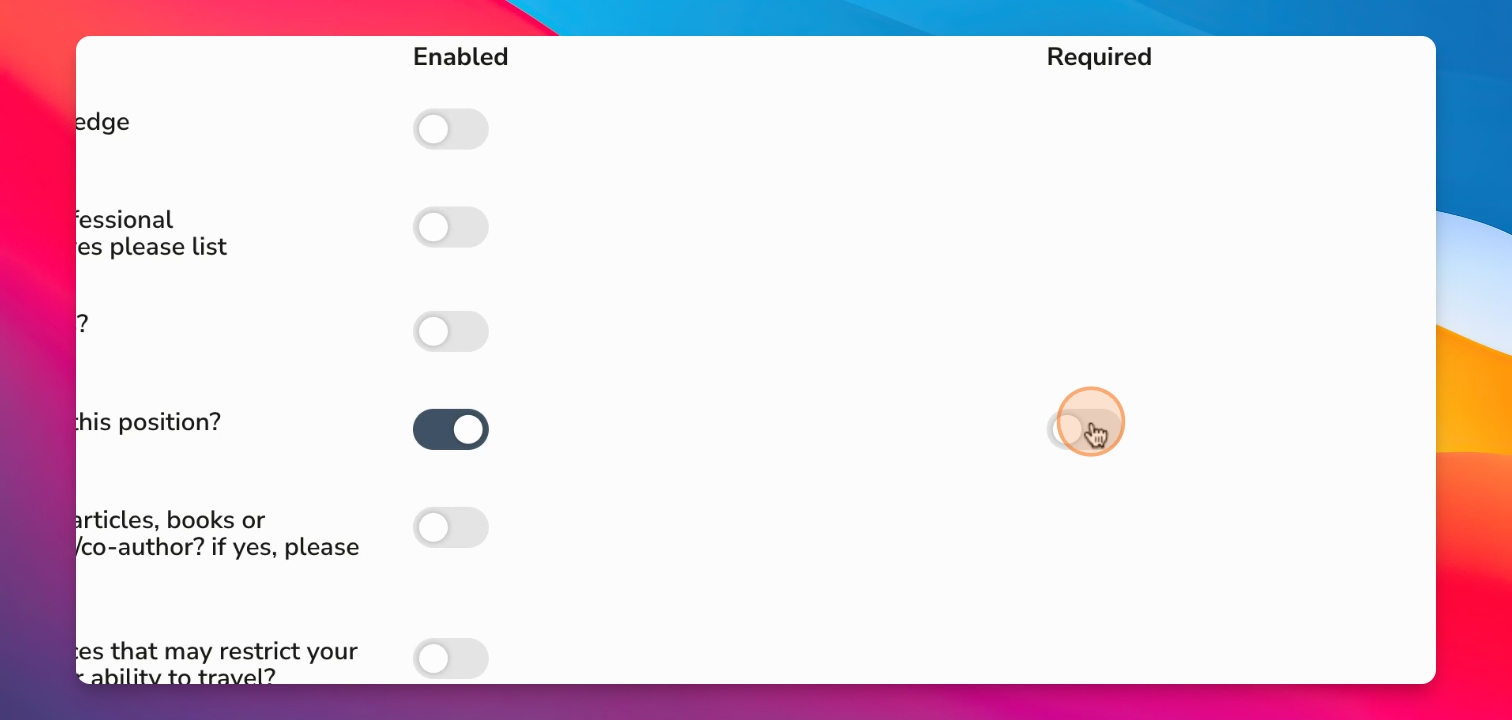
Step 6: Toggle Required Fields
Always remember that you can make these fields required or not; remember to toggle on when needed.
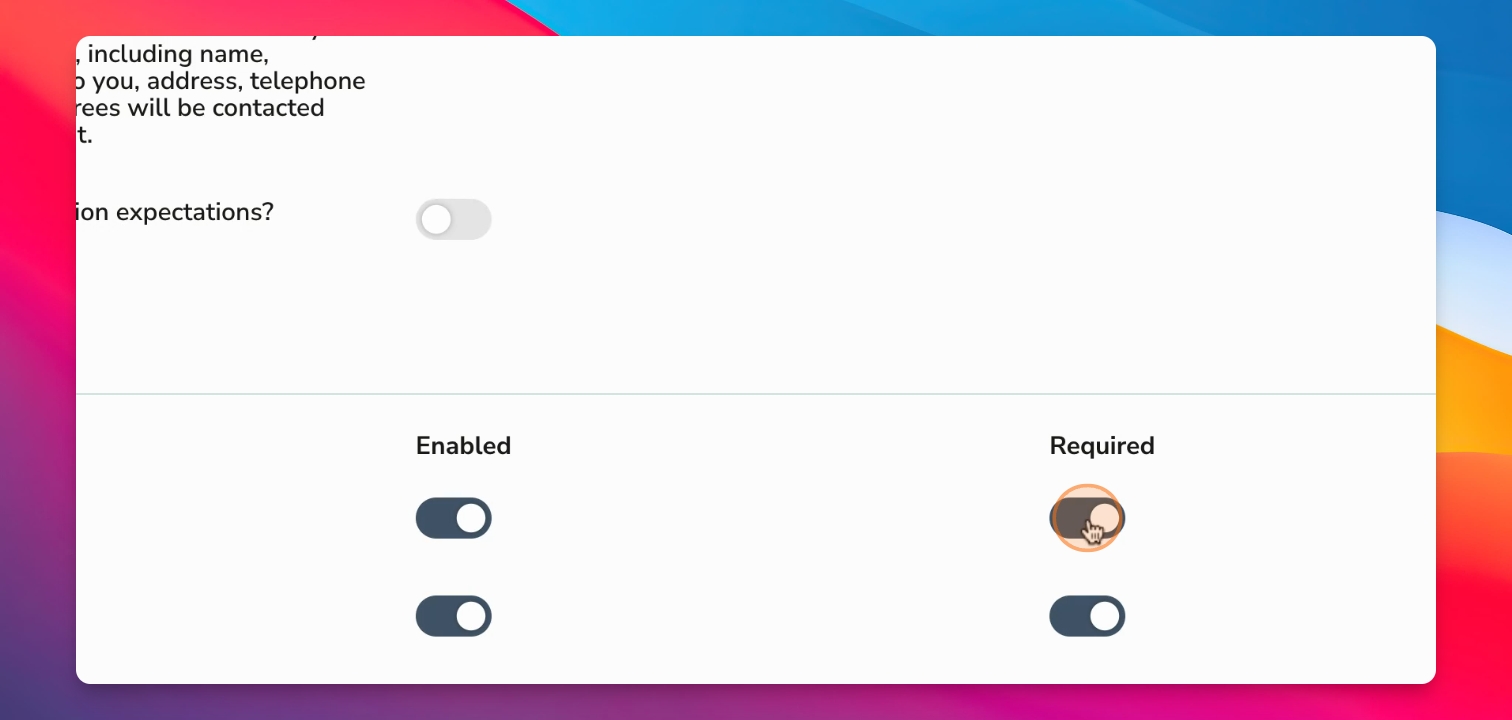
Step 7: Specify Document Requests
You can use various questions inside here, including what documents you will ask for every time you have a vacancy.
Step 8: Understand Global Settings
A good note reminder - is that these settings are set for global settings, so when you set the Application form field here under Settings, this will be the Application form field used moving forward on all of your vacancies.