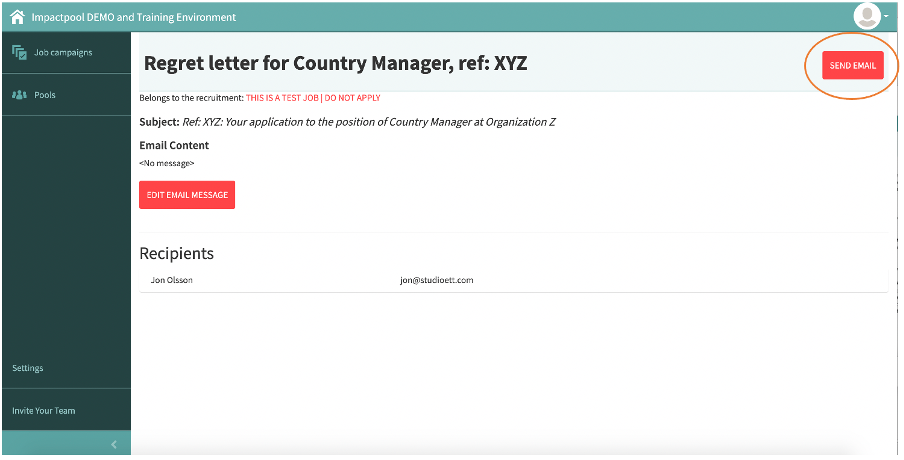

A batch e-mail can be sent any time during a recruitment process, however, the most frequent use is associated with sending a regret letter upon a finalized recruitment process.
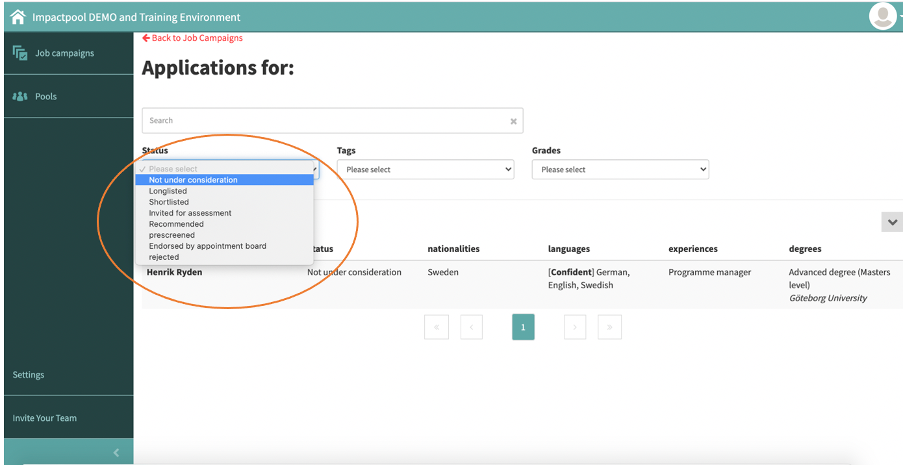
Step 1: To send a message, start by deciding the audience to receive the message, this is done by using the filters (marked in orange below).
In this particular example, I am sending a message to all applicants having the status of Not Under Consideration.
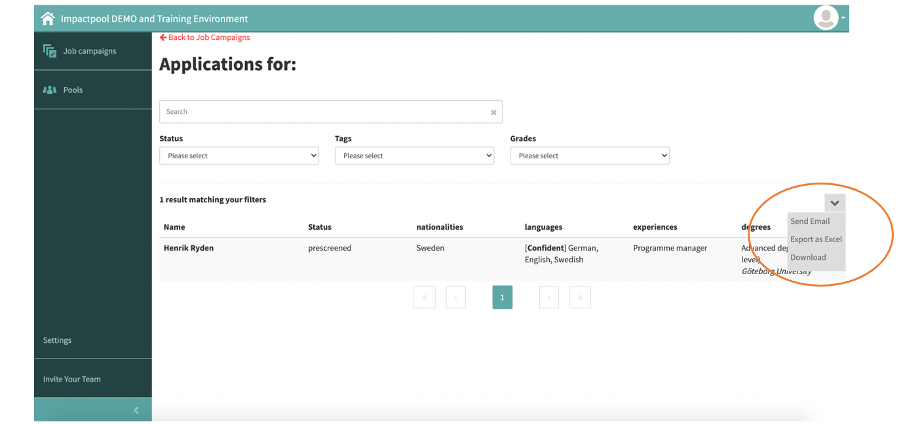
Step 2: To send the message, continue to press the arrow to the right and select [Send e-mail] (marked in orange below).
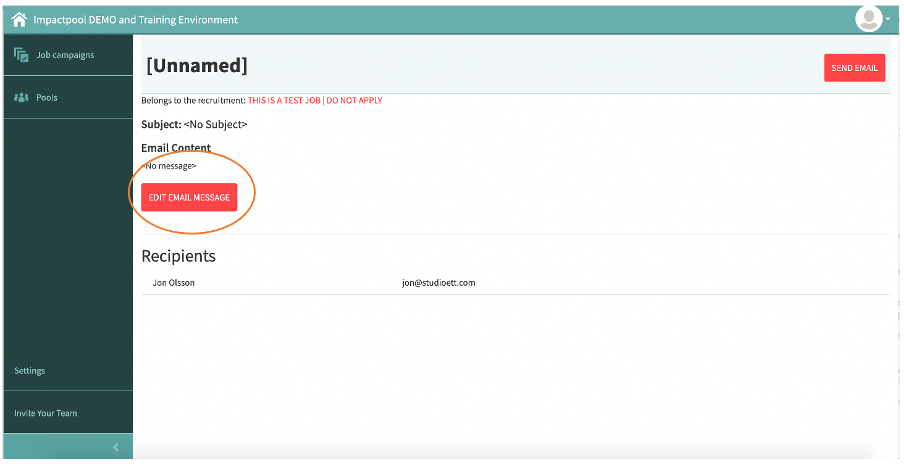
Step 3: A new message screen opens up. Press the [EDIT EMAIL MESSAGE] button (marked in orange below).
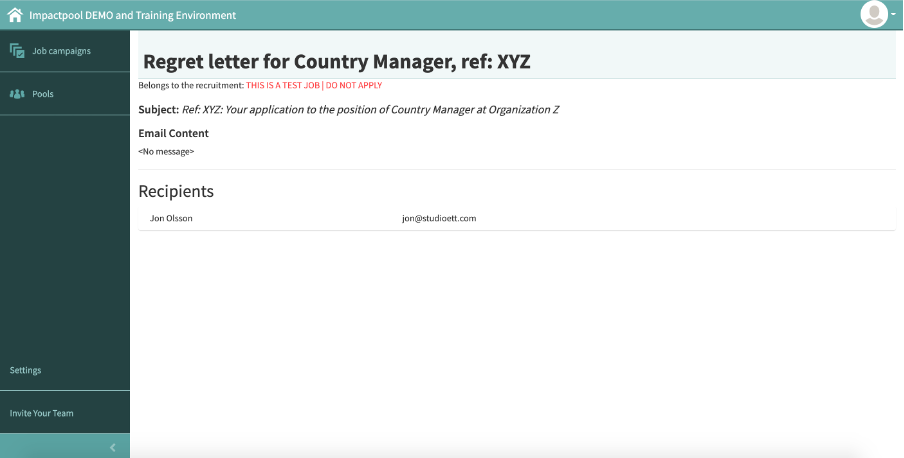
On this screen, you can also see the recipients of this e-mail. In this training example, we only have one recipient (Jon Olsson)
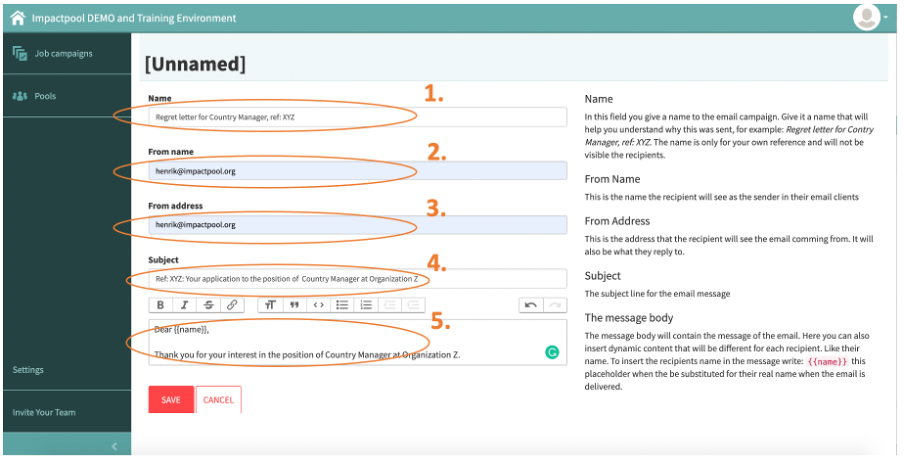
Step 4: Build your message in 5 simple steps. When sending a message you can make the message personal by using the placeholder {{name}}, find more information about this under #4.5 below.
4.1) Name the message
This is not the subject line. In this field, you give a name to the batch email. Give it a name that will help you remember and understand why this message was sent, for example: Regret letter for Country Manager, ref: XYZ.
This name is only used for your own reference and record and will not be visible to any recipients.
4.2) From Name
This is the name the recipient will see as the sender in their email clients
4.3) From Address
This is the address that the recipient will see the email coming from. It will also be what they reply to.
4.4) Subject
The subject line of the email message and the subject that the recipient will see
4.5) The message body
The message body will contain the message of the email. Here you can also insert dynamic content that will be different for each recipient. Like their name.
To insert the recipient's name in the message write: {{name}} this placeholder will be substituted for their real name when the email is delivered.
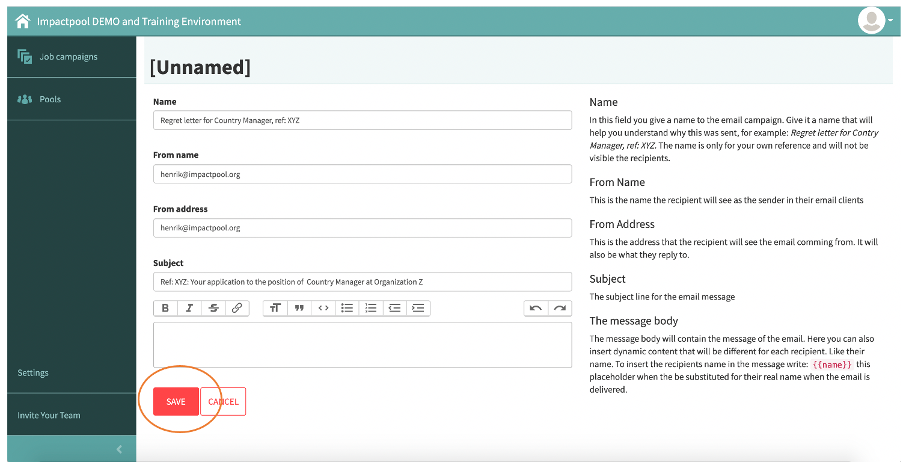
Step 5: Press the [SAVE] to continue (marked in orange below).
Step 6: Press the [SEND] to send the message to all recipients in the list (marked in orange below).
Further down you can see the receipt.
To check that your batch message has been successfully delivered. Read - How to check that a batch message has been successfully sent in Impactpool Recruit™?