
Step 1: Access Microsoft Bookings
Open your web browser (like Chrome, Firefox, Safari, Edge, etc.) and go to: outlook.office.com.
Log in with your Microsoft 365 account credentials.
Once in Outlook on the web, look for the App launcher icon (usually a grid of nine dots) in the top left corner. Click on it.
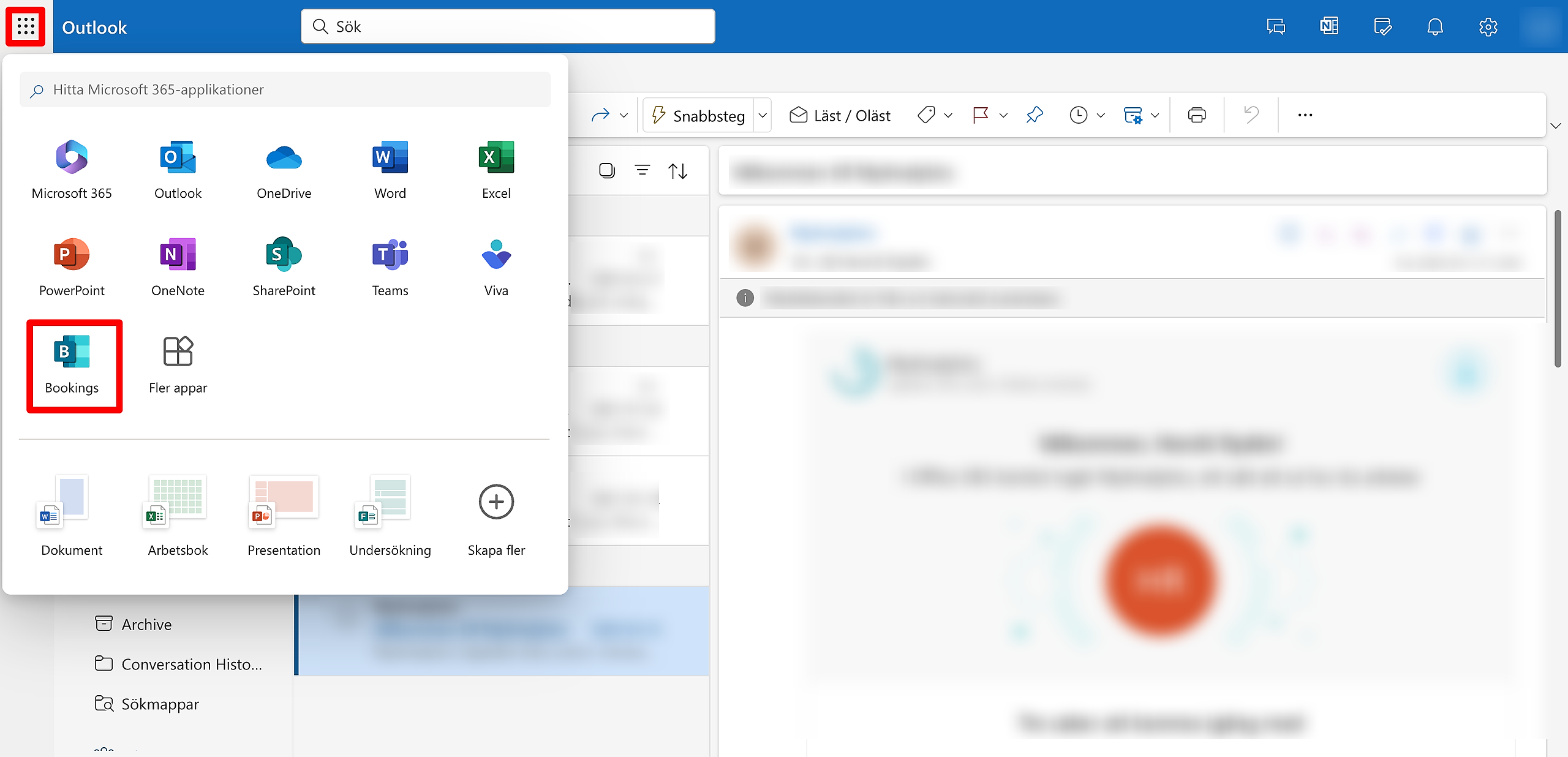
In the App launcher menu, find and click on "Bookings." If you don't see it directly, click "All apps" to see the complete list.
Step 2: Create a New Booking Calendar (if you haven't already)
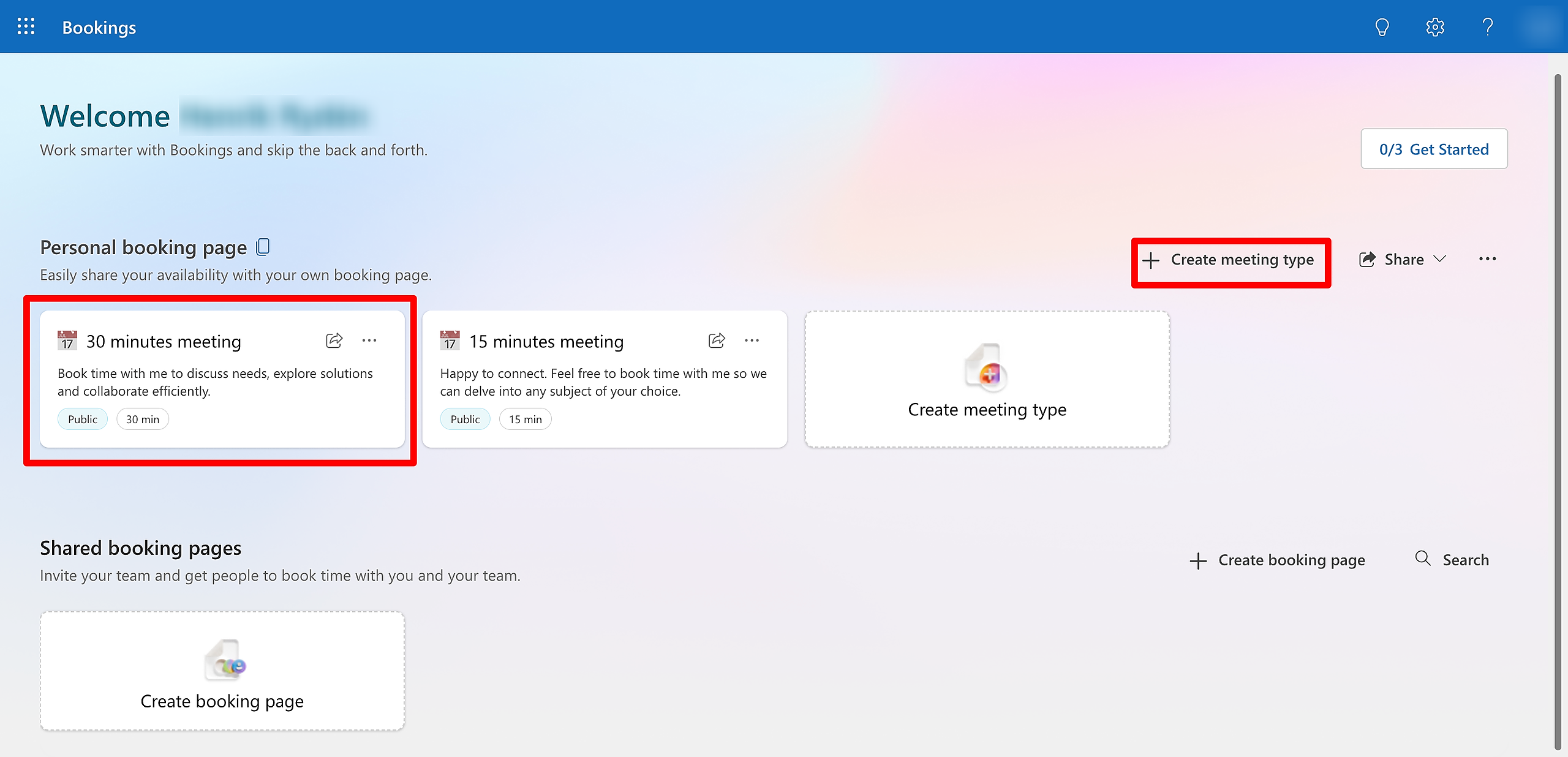
Even if this is your first time using Microsoft Bookings, you may have defaulted meeting bookings, see below. If there are no defaulted options, you can "Create a meeting type." Click on the relevant button.
Step 3: Create a New Booking Calendar from scratch
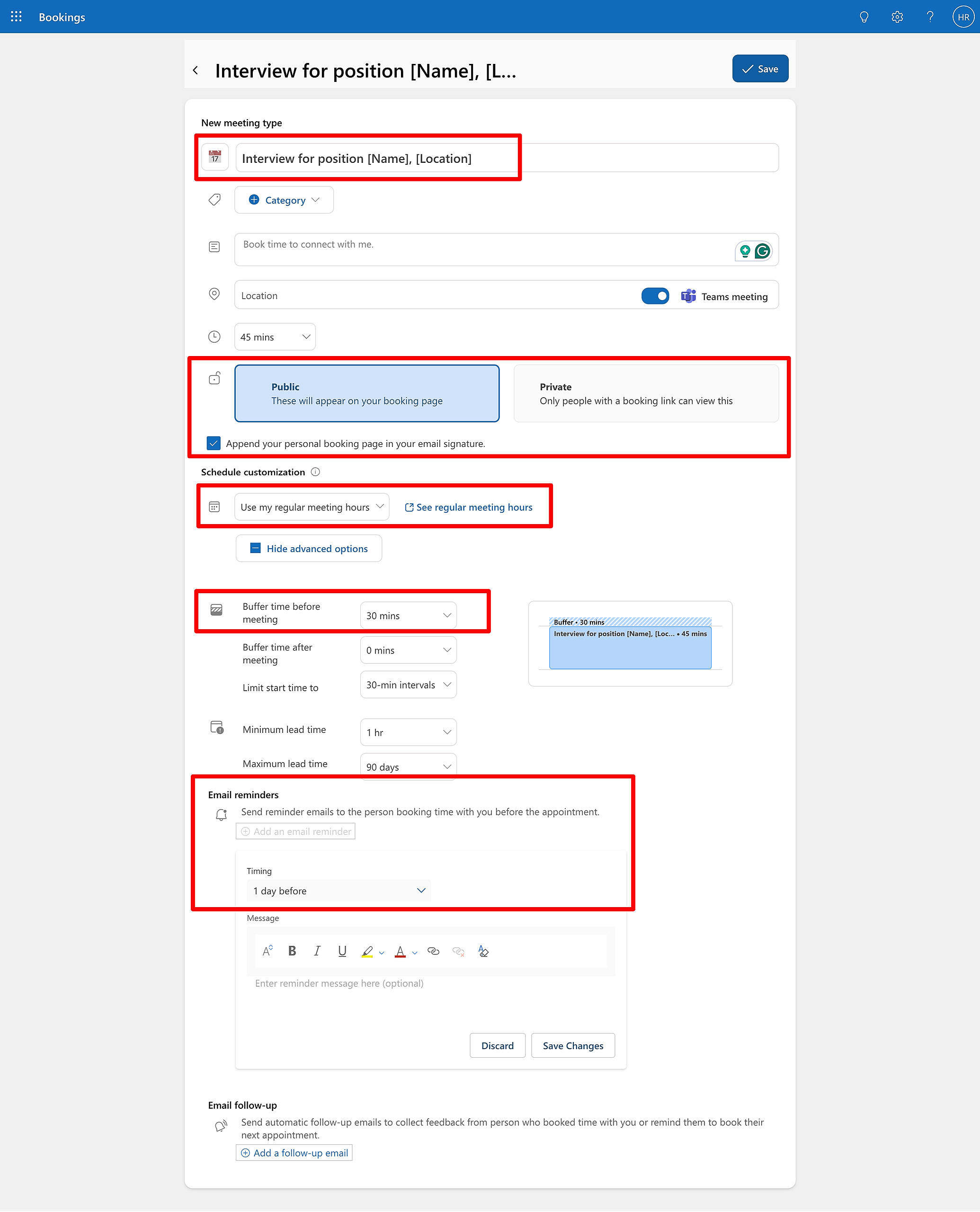
The below screenshot shows the fields available when +create meeting type.
Relevant fields are highlighted. You can name your meeting, decide to make the link public Or private, add buffer zones, select your availability, schedule a reminder and more.
When ready, click Save and a new template will be added to the welcome screen. On the defaulted template, you can also duplicate and make a new personalized version, with a new name, duration etc.
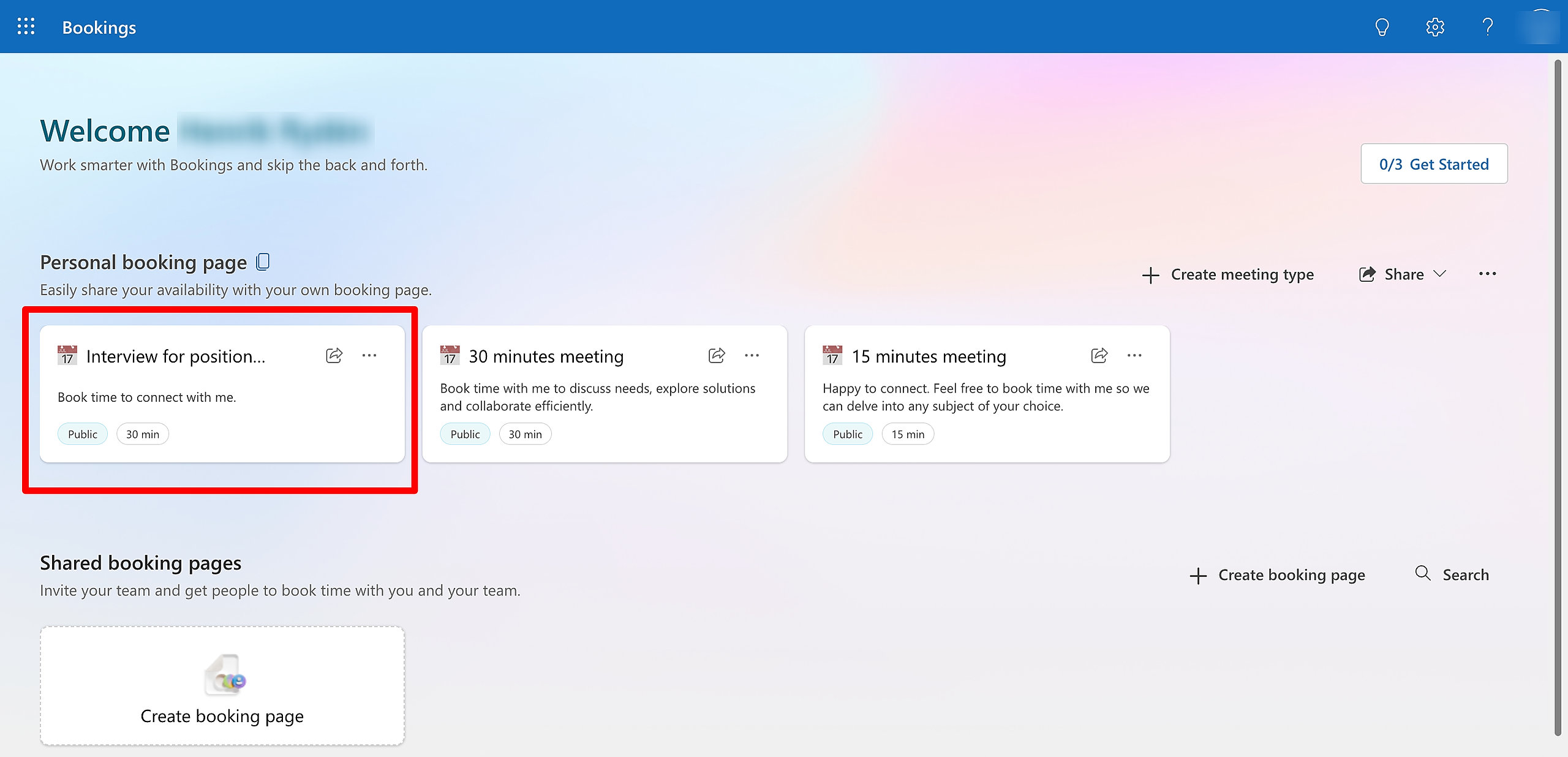
Step 4: Get the Shareable Booking Link
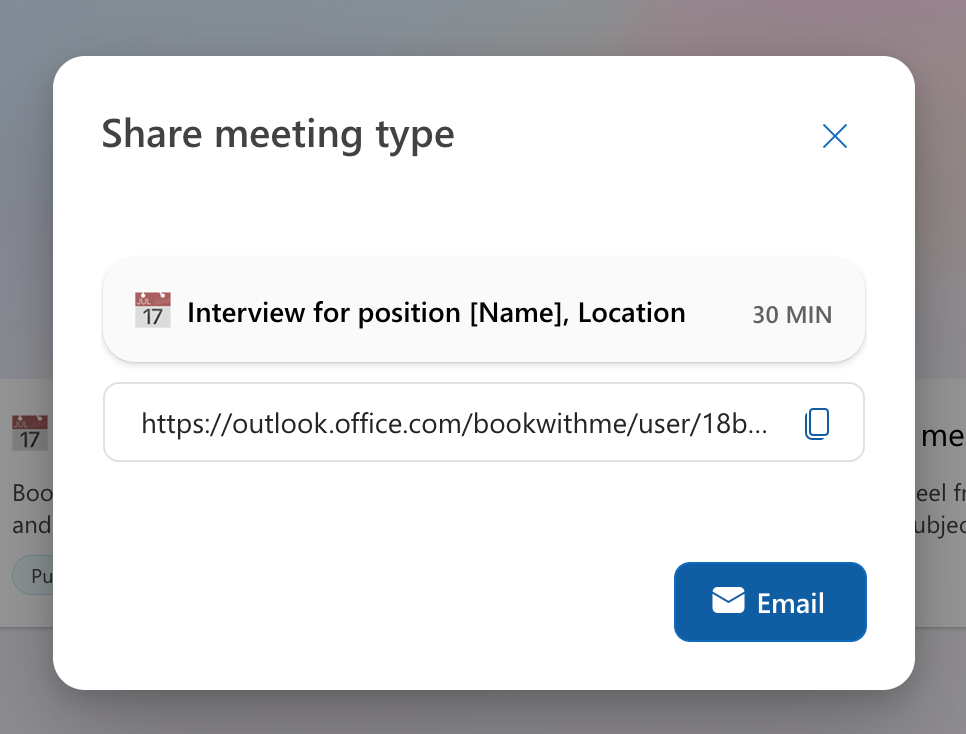
To get the shareable link, click the share button.
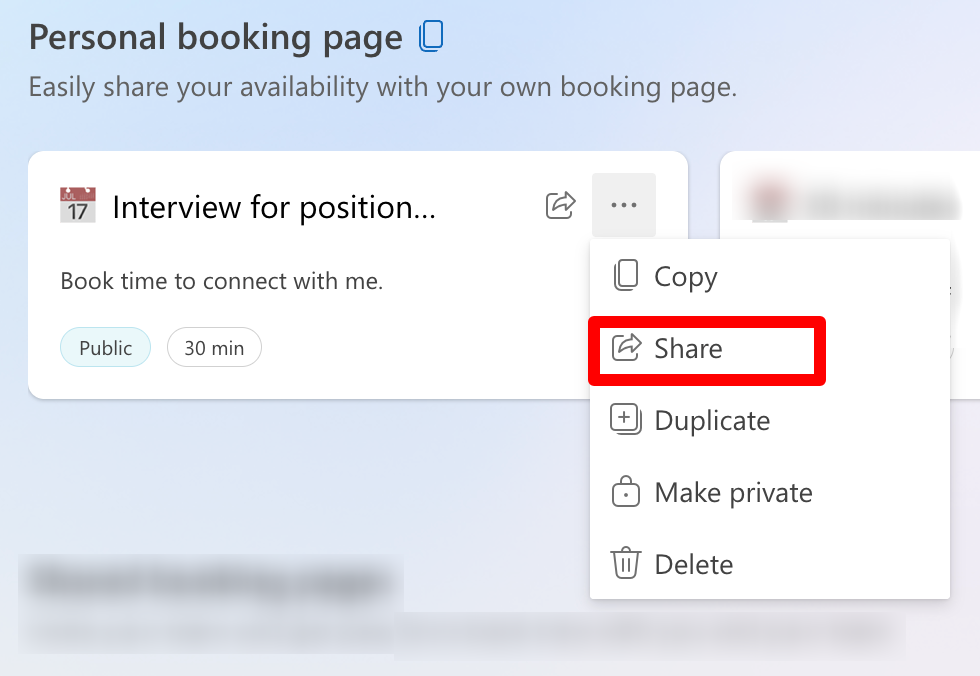
Copy the meeting link and paste it into your Impactpool e-mail invite.